Want to save time on repetitive document formatting tasks? You can create a ChatGPT Skill in Microsoft Word to automatically reformat documents using a consistent set of instructions.
If you've ever found yourself repeatedly asking ChatGPT to make the same changes to different Word documents, creating a reusable Skill can help simplify that process.
In this tutorial, I'll show you how to create a custom ChatGPT Skill using the ChatGPT add-in for Microsoft Word. We'll walk through a practical example of updating older company documents to match new branding and formatting standards, without changing the actual document content.
The best part? Once you've created your Skill, you can use it again and again on other documents!
Watch the Video Tutorial
Prefer to follow along? Watch my step-by-step YouTube tutorial to see exactly how to create, configure, and use a ChatGPT Skill in Microsoft Word.
How To Create a ChatGPT Skill in Word to Reformat Documents Automatically
What Are ChatGPT Skills?
ChatGPT Skills are reusable sets of instructions that help ChatGPT perform specific tasks consistently.
Instead of writing the same detailed prompt every time you need to complete a task, you can create a Skill that contains those instructions and use it whenever needed.
For example, you might create a Skill to:
Reformat documents according to your company's branding standards.
Standardize meeting notes into a consistent format.
Review documents against your organization's writing guidelines.
Create consistent procedures and standard operating procedures (SOPs).
Apply repeatable formatting instructions across multiple documents.
For this tutorial, we'll create a Skill that automatically updates the formatting of Word documents to match a company's new document standards.
Before You Get Started
You'll need Microsoft Word and the ChatGPT add-in installed and available in Word.
If you haven't installed the add-in yet, I have another tutorial that walks you through the installation and setup process.
You'll also want to have a Word document available for testing your Skill.
In my example, I'm using an older company document that needs to be updated with new branding standards, including changes to fonts and colors.
Step 1: Open ChatGPT Skills in Microsoft Word
First, open the document you want to reformat in Microsoft Word.
With the ChatGPT add-in open, locate the three-dot menu in the ChatGPT panel.
Click the three dots to open the menu.
Select Skills.
In the Skills window, select Create new skill.
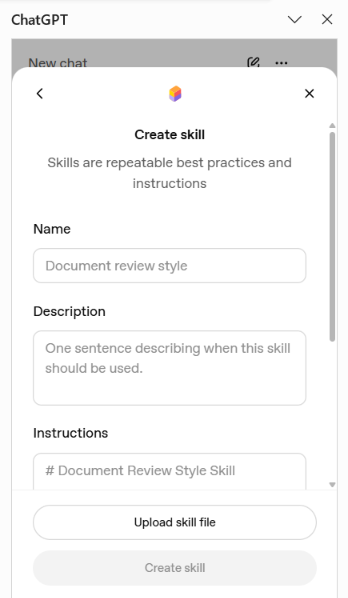
This opens the Skill creation interface, where you can name your Skill and define the instructions ChatGPT should follow.
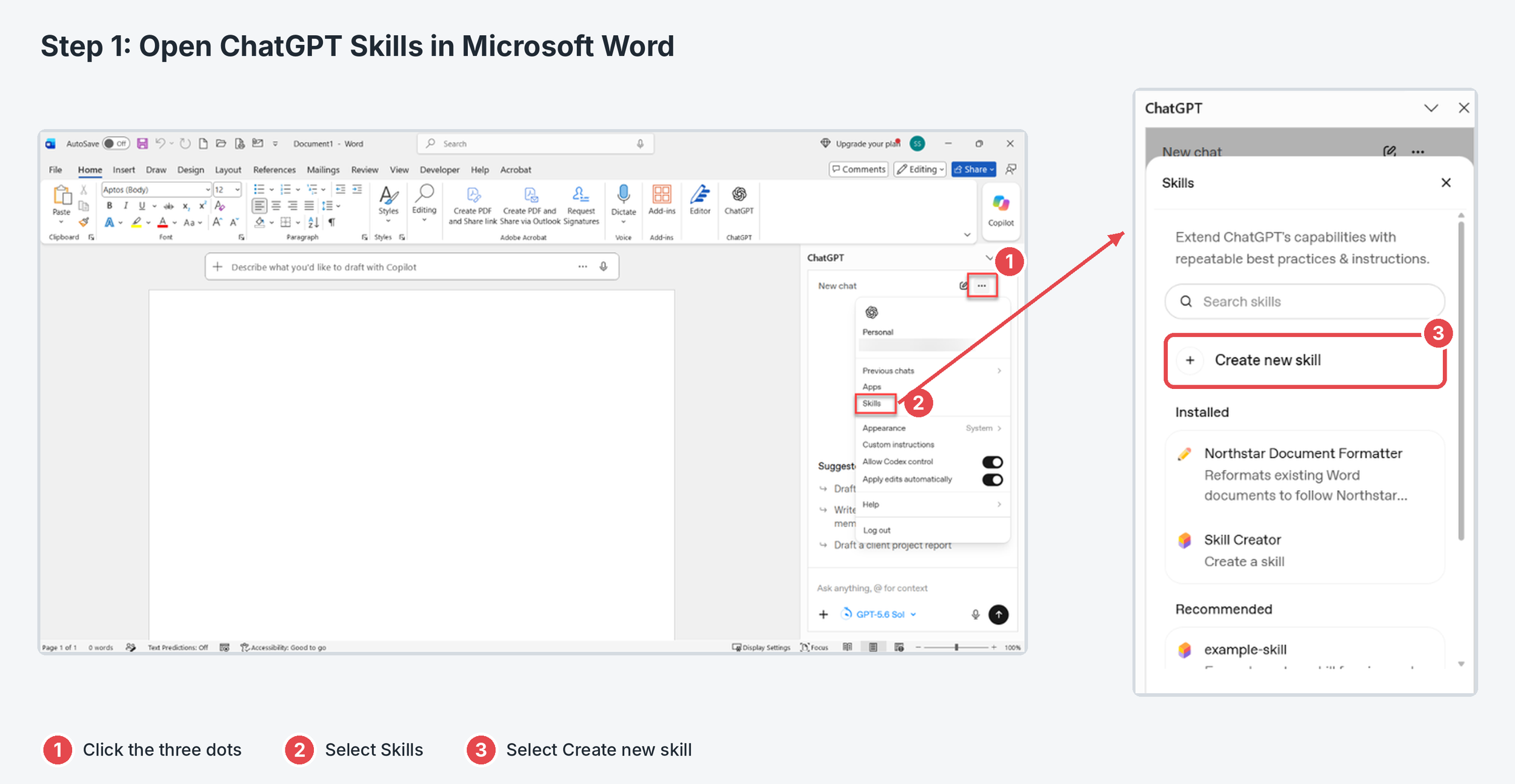
Click the three dots in the ChatGPT panel, select Skills, then choose Create new skill.
Step 2: Name Your ChatGPT Skill
Next, give your Skill a descriptive name that makes it easy to identify later.
For this example, I'm creating a fictional company called Northstar Solutions, and I'll name the Skill:
Northstar Document Formatter
Choose a name that clearly describes the purpose of your Skill.
If you plan to create multiple Skills, descriptive names will make it easier to find the correct one when working with different documents.
Step 3: Add a Description for Your Skill
Next, enter a description explaining what your Skill is designed to do.
The description should briefly summarize the task and the expected result.
For example:
Reformats Microsoft Word documents to match Northstar Solutions' document branding and formatting standards while preserving the original document content.
This helps clarify the Skill's purpose, especially if you create additional Skills for other business processes.
Step 4: Add Detailed Formatting Instructions
This is the most important part of creating your ChatGPT Skill!
In the instructions section, describe exactly what you want ChatGPT to do whenever the Skill is used.
For our example, the company recently updated its branding standards, and we want to apply those changes to older Word documents.
Your instructions might include:
Which font to use throughout the document.
Which brand colors to apply to headings and other elements.
How headings and subheadings should be formatted.
How to handle existing document formatting.
What ChatGPT should review before completing the task.
What information must remain unchanged.
In my example, I'm updating the older Arial font to Aptos and applying the company's new branding colors.
Be specific with your instructions. The more clearly you define your formatting requirements, the easier it will be to reuse your Skill consistently.
Important: Tell ChatGPT What Not to Change
When using AI to reformat business documents, it's just as important to explain what should remain unchanged.
For example, you might include an instruction such as:
Do not rewrite, summarize, delete, or otherwise modify the document's existing content. Only update the formatting specified in these instructions.
You can also ask ChatGPT to perform a final review of the document after applying the changes.
This helps reinforce that the goal is to update the document's appearance, not its underlying information.
Here are the Example Instructions I used in the video:
Reformat the current Microsoft Word document to follow the Northstar Solutions company formatting and branding standard.
The goal is to update the appearance and formatting of an existing document while preserving its original content, meaning, and document structure.
FORMATTING AND BRANDING STANDARDS
Apply the following standards throughout the entire document:
• Use Aptos as the primary font.
• Use dark navy (#17365D) as the primary brand color.
• Use teal (#00A6A6) as the accent color.
• Use a clean, modern, professional business-document appearance.
• Apply consistent Microsoft Word styles for Title, Heading 1, Heading 2, Heading 3, and Normal body text.
• Use navy for primary headings and teal sparingly for accents.
• Standardize font sizes, paragraph spacing, line spacing, indentation, and alignment throughout the document.
• Standardize bulleted and numbered lists.
• Remove unnecessary blank paragraphs and inconsistent spacing.
COVER PAGE
Reformat the existing cover page using a clean Northstar Solutions design.
Preserve the document-specific information from the original document, including the document title, subtitle or module name, client or project name, date, version, and other relevant document information.
Replace outdated consulting-company branding with Northstar Solutions branding.
Do not replace project-specific information with generic or sample information.
TABLES
Reformat existing tables using a consistent professional style:
• Use dark navy header rows.
• Use white bold text in primary header rows.
• Use consistent typography and alignment.
• Apply clean borders and professional spacing.
• Use consistent column widths where appropriate.
• Preserve all existing table content and values.
HEADERS AND FOOTERS
Replace outdated company branding in headers and footers with Northstar Solutions branding.
Use:
Northstar Solutions | Confidential
in the footer where appropriate.
Preserve useful document-specific information in headers or footers when applicable.
Ensure page numbers are present and functional.
TABLE OF CONTENTS
If the document contains a Table of Contents, reformat it so that it visually matches the Northstar Solutions branding and the rest of the updated document.
Do not simply preserve the existing Table of Contents formatting.
• Format the "Table of Contents" title using the Northstar Solutions Heading 1 style.
• Use Aptos for all Table of Contents entries.
• Apply a clean, professional hierarchy that visually distinguishes major sections from subsections.
• Use consistent indentation for each Table of Contents level.
• Use Northstar navy (#17365D) for primary-level entries and dark body text for secondary entries.
• Use consistent spacing between entries.
• Right-align page numbers.
• Use clean, consistent dot leaders between section titles and page numbers.
• Remove outdated manual formatting, inconsistent tabs, spacing, or alignment.
• Ensure the Table of Contents fits naturally within the page margins and aligns with the rest of the document.
• If the existing Table of Contents is an automatic Microsoft Word TOC, preserve its automatic functionality and update its formatting rather than converting it to static text.
• If appropriate Word heading styles are available, update the Table of Contents so the section names and page numbers reflect the reformatted document.
The finished Table of Contents should look intentionally designed as part of the Northstar Solutions document rather than retained from the original document.
CONTENT PRESERVATION
Formatting is the primary purpose of this skill.
Do not:
• Summarize the document.
• Rewrite business or technical content simply to improve its wording.
• Remove document sections.
• Remove tables.
• Change business decisions, requirements, configuration values, or technical information.
• Invent missing information.
• Replace document-specific information with sample content.
Minor corrections to obvious formatting inconsistencies, spacing, capitalization, or punctuation are acceptable when they do not change the meaning of the content.
FINAL REVIEW
Before completing the task, review the entire document and verify that:
• Northstar Solutions branding has been applied consistently.
• The original content has been preserved.
• Heading styles are consistent.
• Body text is consistently formatted.
• Tables follow the new formatting standard.
• Bulleted and numbered lists are consistent.
• Headers and footers use the new branding.
• Page numbers are functional.
• The Table of Contents is current when applicable.
• The Table of Contents has been reformatted to match the Northstar Solutions standard and does not retain outdated formatting from the original document.
Apply the formatting changes directly to the open Word document.
After completing the work, briefly summarize the formatting changes that were made and identify anything that may require manual review.
Step 5: Create Your ChatGPT Skill
Once you've entered the name, description, and instructions, click Create Skill.
Your new Skill is now available in the ChatGPT Skills area.
From here, you can:
Try the Skill in Chat.
Reopen and edit the Skill.
Refine your instructions as needed.
Uninstall or delete the Skill when it's no longer needed.
You don't have to get every instruction perfect on your first attempt. You can make adjustments after testing the results.
Step 6: Run Your Skill in Microsoft Word
Now that you've created your Skill, let's use it to reformat the document.
There are two ways to access your Skill in the ChatGPT add-in.
Option 1: Select the Skill from the Skills menu
Open the Skills area in ChatGPT.
Locate your newly created Skill.
Select Try in Chat to add it to your prompt.
Option 2: Use the @ symbol
You can also invoke your Skill directly from the ChatGPT prompt.
Click inside the ChatGPT prompt area.
Type the @ symbol.
Start typing the name of your Skill.
Select the Skill when it appears in the list.
Once the Skill is added to your prompt, submit it to ChatGPT.
ChatGPT will use the instructions saved in your Skill to work through the document formatting process.
Step 7: Review Your Updated Document
After ChatGPT finishes applying the formatting changes, review the document to confirm that everything looks correct.
In my example, I check that:
The font has been updated to Aptos.
The colors reflect the company's new branding.
The document formatting looks consistent.
The original document information remains intact.
Remember, even when using a reusable Skill, it's important to review AI-generated changes before distributing business documents.
If something doesn't look right, you can return to your Skill and refine the instructions.
Step 8: Reuse Your ChatGPT Skill on Another Document
Now comes the real time-saving benefit!
Instead of recreating your formatting instructions for the next document, you can simply reuse the Skill you've already created.
To demonstrate this, I open a completely different Word document that also needs to be updated.
With the ChatGPT add-in open:
Type @ in the prompt area.
Select Northstar Document Formatter.
Enter a short prompt requesting that ChatGPT reformat the document using the Northstar Solutions standards.
Submit the prompt.
ChatGPT can now apply the same saved formatting instructions to the new document.
There's no need to rewrite all those detailed requirements each time!
Other Ways to Use ChatGPT Skills in Microsoft Word
Document formatting is just one example of how you can use ChatGPT Skills to simplify repetitive work.
Here are a few additional ideas.
Standardize Meeting Notes
Create a Skill that organizes meeting transcripts or rough notes into a consistent structure, including discussion topics, decisions, action items, and follow-up tasks.
Review Documents Against Writing Standards
Create a Skill that reviews documents against your organization's writing guidelines, including tone, terminology, structure, and consistency.
Create Procedures and SOPs
Use a Skill to organize process instructions into a consistent standard operating procedure format, with sections for purpose, scope, responsibilities, and step-by-step instructions.
These are all examples of tasks where you might otherwise find yourself repeatedly providing ChatGPT with the same instructions.
Final Thoughts: Stop Repeating Yourself and Save Time!
One of the biggest advantages of ChatGPT Skills is the ability to save detailed instructions and reuse them whenever you need them.
Whether you're formatting Word documents, standardizing meeting notes, or creating consistent business procedures, Skills can help make repetitive tasks easier and more efficient.
The key is to identify the instructions you find yourself repeating. If you're regularly giving ChatGPT the same set of directions, that's a great candidate for a reusable Skill.
And remember to review the results, especially when working with important business or client documents, and follow your organization's policies for using AI with company information.
Learn More About ChatGPT in Microsoft Word
If you're new to using ChatGPT inside Microsoft Word, be sure to watch my other tutorial where I demonstrate how to install the ChatGPT add-in and start using it directly in Word.
How to Use ChatGPT in Microsoft Word - ChatGPT for Word Add-in Tutorial
If you found this tutorial helpful, subscribe to my YouTube channel for more practical tutorials on Microsoft 365, ChatGPT, AI productivity tools, and technology skills for work and career growth.