
If you find yourself repeating the same Excel tasks every week or month, Office Scripts can help you turn those manual steps into a reusable automation.
In this tutorial, I’ll show you how to automate repetitive Excel tasks with Office Scripts in Excel on the web by recording the steps you normally perform manually, saving those actions as a reusable script, and then running the script on a new report.
I’ll also show you something that’s just as important: what to do when your recorded Office Script doesn’t work exactly as expected.
That happened to me while creating this tutorial. The Office Scripts recorder captured my actions, but when I tested the script, some of my columns moved to the wrong locations. Instead of starting over, I used Microsoft Copilot to help troubleshoot and refine the TypeScript code generated by Office Scripts.
By the end, I had a reusable script that could be run against the following week’s report—even when the number of employee records changed.
🎥 Want to follow along? Watch the complete step-by-step video tutorial: Automate Excel Tasks with Office Scripts and AI – Stop Repeating Excel Actions Manually!
Automate Excel Tasks with Office Scripts and AI
Before You Start: Download the Practice Files
Want to follow along with the tutorial? I’ve provided the two fictional HR employee data reports used in the video.
📥 Download Week 1 Practice File
Use this report to record, test, and refine your Office Script.
📥 Download Week 2 Practice File
Use this report to test your finished script against a new version of the report.
Use Week 1 while creating and testing your automation. Then, once your script is working, use Week 2 as the real test.
The second report contains a different number of employee records, which helps demonstrate why we want our Office Script to work dynamically rather than relying on a fixed number of rows.
Note: All employee information in these practice files is entirely fictional and was created for tutorial purposes.
What Are Office Scripts in Excel?
Office Scripts allow you to automate repetitive tasks in Excel.
Instead of manually performing the same sequence of actions every time you receive a report, you can record those actions and save them as a script.
For example, maybe every week you download a report and need to:
Format the header row
Rename columns
Remove hyperlinks
Add formulas
Format currency
Autofit columns
Clean up the report for use
You can perform those steps once while Office Scripts records your actions.
Excel then translates those recorded actions into TypeScript code, which can be saved and run again later.
And you don't have to write that TypeScript from scratch to get started.
Step 1: Open Excel on the Web
For this tutorial, start by opening Excel on the web with Microsoft 365.
Open the Week 1 practice report.
You'll notice that the sample HR report needs some cleanup. For example, the headers need formatting, Employee IDs contain hyperlinks, the columns need to be resized, and we want to calculate an Annualized Salary for each employee.
These are exactly the types of repetitive actions that can make a good candidate for automation.
Step 2: Record Your Excel Actions
In Excel on the web, select:
Automate → New Script → Create from Recording
Excel opens the Record Actions pane.
Now perform the tasks that you would normally complete manually.
In my example, I clean up the report by formatting and renaming the headers, removing hyperlinks, adding an Annualized Salary calculation, formatting the salary as currency, autofitting the columns, and working with the report data.
For Annualized Salary, I'm using:
Hourly Rate × 2,080 × FTE
For example, the Excel formula entered in the first employee row is:
=HR*2080*G2
Once the report is formatted the way you want it, select Stop Recording.
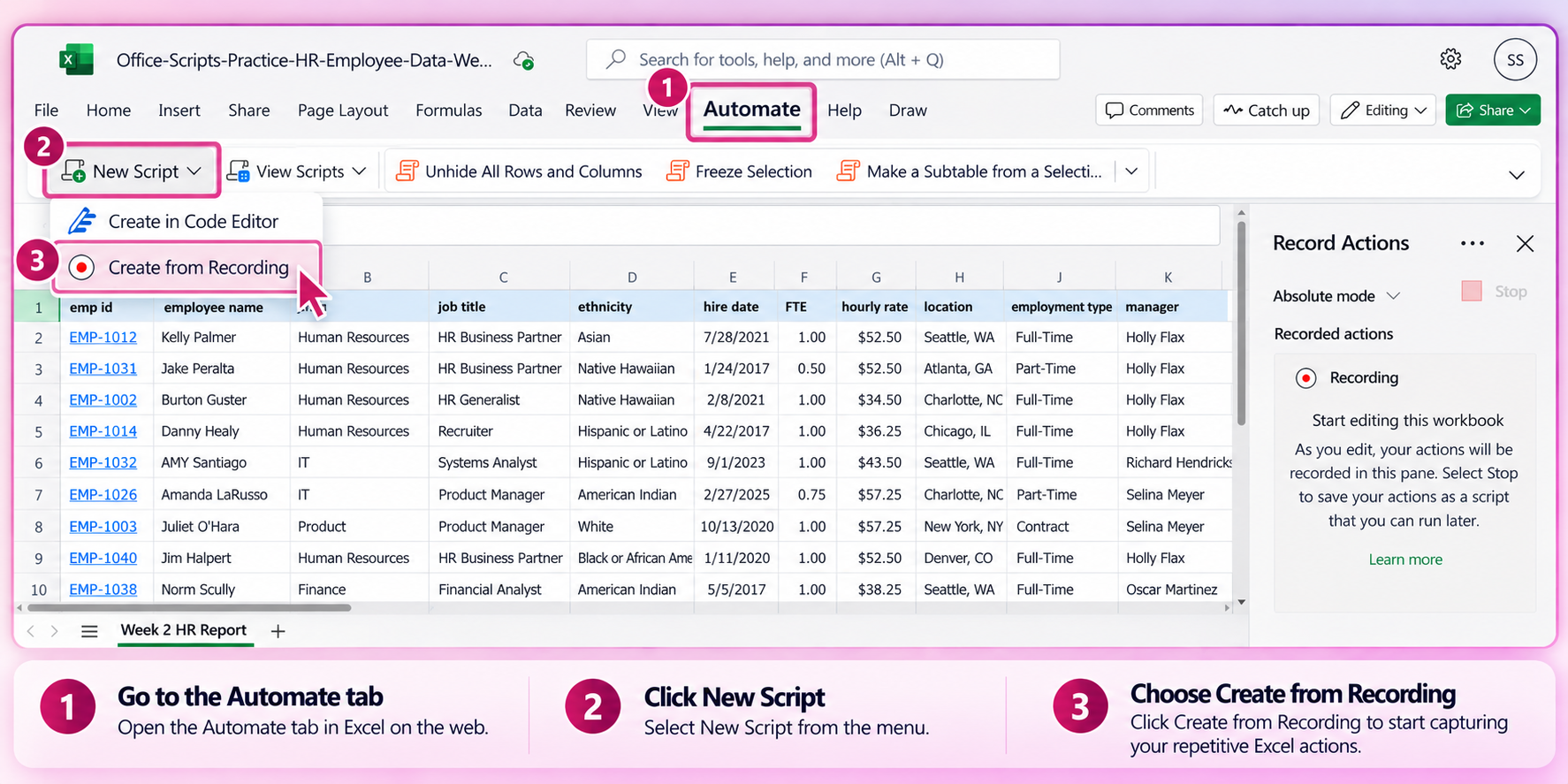
Create an Office Script in Excel on the web using the Record Actions feature
Step 3: Save Your Office Script
Give the script a descriptive name so you'll recognize it later.
For my example, I created a Clean HR Data script.
You can also add a description explaining what the script is designed to do.
Once saved, the script can be accessed again from the Automate tab.
But don't assume that because the recording was successful, your automation is finished.
Test it first.
Step 4: Test Your Recorded Office Script
To test my script, I added a new worksheet and pasted the original unformatted data into it again.
Then I went to:
Automate → View Scripts → Recent Scripts
I selected my Clean HR Data script and clicked Run.
Excel reported that the script ran successfully.
There was just one problem:
The resulting report wasn't correct.
Some of the columns had moved to different positions.
This is an important distinction when working with automation:
A script running successfully doesn't necessarily mean that it produced the result you intended.
Always look at the output.
Step 5: View the TypeScript Behind Your Office Script
When you record actions with Office Scripts, Excel translates those actions into TypeScript, a programming language based on JavaScript.
You can view that code by editing your saved Office Script.
Now, I don't write TypeScript from scratch—and you don't have to know TypeScript to use the Action Recorder.
But once I could see the code generated by my recording, I had something I could use to troubleshoot the problem.
That's where AI became especially useful.
Step 6: Use AI to Troubleshoot an Office Script
I copied the TypeScript generated by Office Scripts and opened Microsoft Copilot.
Along with the code, I explained what had happened when I tested the script.
I also provided before and after screenshots so Copilot could see the result I expected compared with the result the recorded script actually produced.
Most importantly, I explained that I needed the finished script to work with future reports, where the number of employee records might change.
That's an important detail.
I didn't just want AI to fix one spreadsheet. I wanted help making the automation reusable.
A prompt like this can give AI the context it needs:
I recorded an Office Script in Excel on the web. When I ran the script to test it, the columns were not formatted correctly. Can you help me troubleshoot the TypeScript code and refine it to work correctly? I need this to work on future reports.
Then provide the existing TypeScript and, when helpful, screenshots showing the before and after results.
A useful troubleshooting approach
When using AI to troubleshoot an automation, try to provide:
What you expected → What actually happened → Your existing code → What needs to remain dynamic
The more clearly you describe the problem, the easier it is to evaluate whether the proposed solution actually addresses it.
And remember: AI-generated code should still be reviewed and tested before you rely on it.
Step 7: Replace the Recorded Code and Test Again
After reviewing the revised TypeScript, I returned to my Office Script, replaced the previous code, saved the updated script, and tested it again against a clean copy of the original data.
This required some testing and refinement before I got the result I wanted.
That's an important part of the process.
Set it up → Test it → Refine it → Test it again
Automation doesn't eliminate the need for verification. It eliminates the need to manually repeat all of the underlying work once you've developed an automation that works reliably for your use case.
Final Office Script TypeScript Used in the Tutorial
If you're following along with my practice files, below is the final version of the TypeScript used for the automation.
You can use this as a learning example or starting point, but keep in mind that the ranges, column locations, formulas, headers, and formatting are designed around the sample HR report used in this tutorial.
Your own report may require different column references or instructions.
function main(workbook: ExcelScript.Workbook) {
	const sheet = workbook.getActiveWorksheet();

	// --- Identify last row dynamically ---
	const usedRange = sheet.getUsedRange();
	const lastRow = usedRange.getRowCount();

	// --- Write corrected headers (A–L) ---
	sheet.getRange("A1:L1").setValues([[
		"Employee ID",
		"Employee Name",
		"Department",
		"Job Title",
		"Ethnicity",
		"Hire Date",
		"FTE",
		"Hourly Rate",
		"Location",
		"Employment Type",
		"Manager",
		"Annualized Salary"
	]]);

	// --- Format header row (including column A explicitly) ---
	const header = sheet.getRange("A1:L1");
	header.getFormat().getFont().setBold(true);
	header.getFormat().getFill().setColor("DCE6F1");

	// --- Clear hyperlinks in Employee ID column ---
	sheet.getRange("A:A").clear(ExcelScript.ClearApplyTo.removeHyperlinks);

	// --- Insert Annualized Salary formula in L2 ---
	sheet.getRange("L2").setFormula("=H2*2080*G2");

	// --- Fill formula down dynamically ---
	const salaryFillRange = sheet.getRange(`L2:L${lastRow}`);
	sheet.getRange("L2").autoFill(salaryFillRange, ExcelScript.AutoFillType.fillDefault);

	// --- Format salary column ---
	sheet.getRange("L:L").setNumberFormatLocal(
		"_([$$-en-US]* #,##0.00_);_([$$-en-US]* (#,##0.00);_([$$-en-US]* \"-\"??_);_(@_)"
	);

	// --- Auto-fit all columns ---
	sheet.getUsedRange().getFormat().autofitColumns();
}
What This Office Script Does
This version of the script:
Identifies the number of rows in the active report dynamically
Standardizes the headers in columns A through L
Formats the header row with bold text and a light blue fill
Removes hyperlinks from the Employee ID column
Adds the Annualized Salary formula
Fills the formula down through the available employee records
Formats Annualized Salary as U.S. currency
Autofits the report columns
The dynamic row handling is particularly important for a recurring report because next week's file may contain more or fewer employee records than this week's file.
One important difference from the initial recording
During the recording portion of the video, I also demonstrate sorting the report by Department.
The final TypeScript above does not include that Department sort. I'm sharing the final code here exactly as used for the finished automation rather than adding functionality that wasn't part of that final version.
If you customize this example for your own reports, make sure you test any additional sorting or data manipulation carefully so complete records stay together.
Step 8: Test the Office Script on a New Report
Once the script worked on the original data, I opened the Week 2 practice report.
This is the real test of a reusable automation.
The new report isn't identical to Week 1. It includes an additional employee record, so the number of rows has changed.
I ran the same Office Script against the new report and verified that the Annualized Salary calculation extended through the additional data.
That demonstrates why we refined the code to determine the report length dynamically instead of assuming that every weekly report would contain exactly the same number of rows.
What If Part of the Automation Still Isn't Perfect?
In my final test, I still had one small formatting issue with the first cell in the header row during the demonstration.
My workaround was simple: I used Format Painter to copy the desired header formatting to that cell.
Could I continue working on the script to eliminate that manual step? Absolutely.
But this also raises a practical question worth asking with any automation:
How much time should you spend automating an exception that takes only a few seconds to fix manually?
Sometimes continuing to refine the automation makes sense. Other times, a five-second workaround is perfectly reasonable—especially when the automation has already eliminated dozens of repetitive manual steps.
Office Scripts vs. Copilot Skills in Excel
Office Scripts aren't the only way to automate repetitive Excel report cleanup.
I also created this same general automation using Copilot Skills in Excel.
The two approaches work differently.
Office Scripts allow you to record or define a specific set of Excel actions. Those actions are represented in TypeScript code that Excel executes.
Copilot Skills allow you to save reusable natural-language instructions in a SKILL.md file. Copilot interprets those instructions and determines how to carry them out.
Both approaches can require:
Setup → Testing → Refinement → Retesting
The difference is largely what you're refining.
With Office Scripts, you may need to refine the TypeScript code.
With Copilot Skills, you may need to refine the instructions in your SKILL.md file.
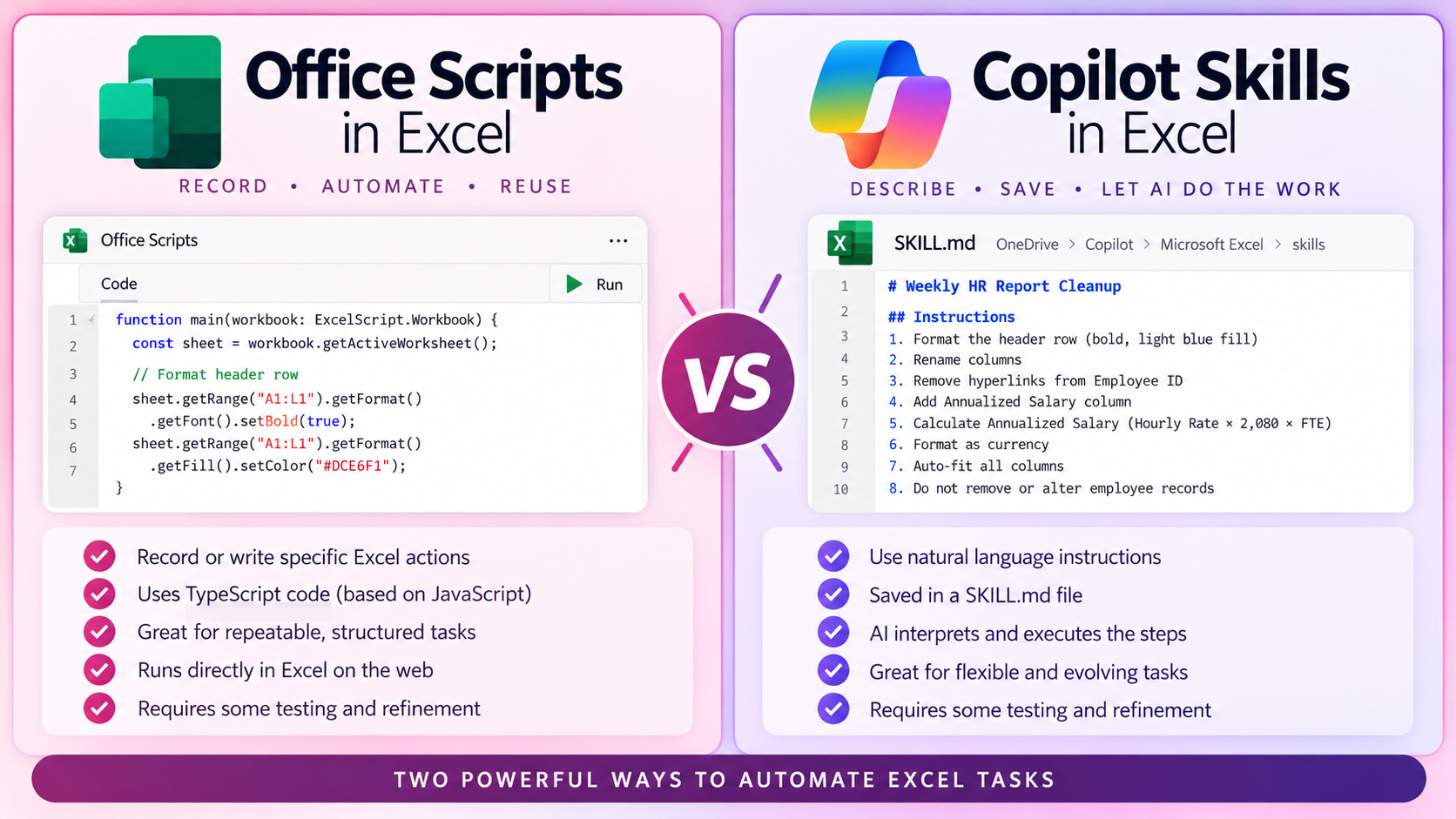
Office Scripts and Copilot Skills offer two different ways to automate repetitive Excel tasks. Office Scripts records or defines specific actions using TypeScript code, while Copilot Skills uses reusable natural-language instructions that AI interprets and applies
🎥 Want to see the AI-powered approach?
Watch my tutorial: Stop Formatting Excel Reports By Hand! Automate Excel Reports with Copilot Skills
Which Excel Tasks Could You Automate?
The HR report in this tutorial is only one example.
Think about reports you receive every week, month, or quarter.
Do you repeatedly:
Clean up formatting?
Rename columns?
Remove unwanted links?
Add the same formulas?
Apply the same number formats?
Resize columns?
Prepare exported data for analysis?
If you're performing the same sequence of actions over and over, it may be worth testing whether Office Scripts can automate some of that work.
The goal isn't necessarily to automate every click.
The goal is to stop manually repeating work that Excel can reliably do for you.
Watch the Complete Office Scripts Tutorial
🎥 Automate Excel Tasks with Office Scripts and AI – Stop Repeating Excel Actions Manually!
📥 Download the Week 1 and Week 2 practice files above to follow along.
And if you'd like to compare this approach with reusable AI instructions, watch my Copilot Skills in Excel tutorial next.