
If you find yourself formatting the same Excel report by hand every week or month, Copilot Skills in Excel can help you automate repetitive report cleanup and save those instructions to use again.
Instead of giving Copilot the same long prompt every time a new report arrives, you can create a reusable Copilot Skill in Excel that tells Copilot how you want that type of report cleaned up, formatted, calculated, and organized.
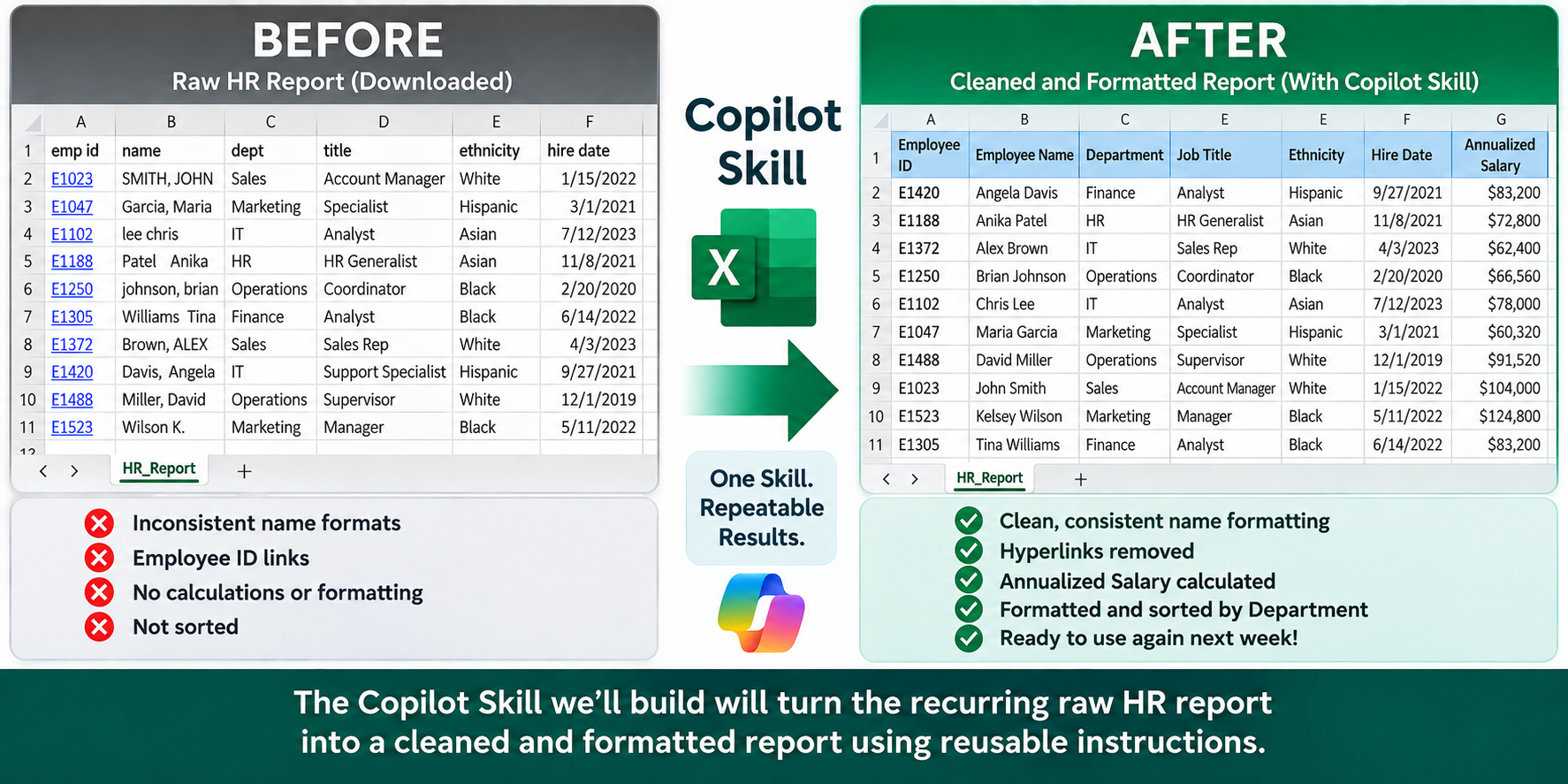
Before and after Excel HR report showing how a reusable Copilot Skill cleans, formats, calculates, and organizes recurring report data
In this tutorial, I'll show you the basic process for creating a custom Copilot Skill and using it to automate a recurring Excel report.
🎥 Prefer to follow along? Watch my complete step-by-step video tutorial and download the two practice Excel files below.
Automate Excel Reports with Copilot Skills - Step-by-step Tutorial
Before You Start: Download the Practice Files
Want to follow along with the tutorial? I’ve provided the two fictional employee-data spreadsheets I use in the video so you can build and test the Copilot Skill yourself.
📥Download the Practice Files
Note: Clicking the links below will automatically download the Excel practice files to your device.
📥Download Week 1 Practice File
HR Employee Data Report - use this file to create and test your Copilot Skill
📥Download Week 2 Practice File
HR Employee Data Report - use this file to test your Skill on a new report
We’ll use the Week 1 report to create and test the Skill. Then, later in the tutorial, we’ll use the Week 2 report to see how the same reusable Skill works with a brand-new version of the report.
⚠️ Don’t see Custom Skills in your Excel desktop app?
Switch to Excel for the Web to follow along. Open a browser and go to excel.cloud.microsoft, sign in to your Microsoft 365 account, and upload the two practice spreadsheets. You can then continue with the steps below using Excel in your browser.
Note: The employee information in these practice files is fictional and provided for tutorial purposes only.
What Is a Copilot Skill in Excel?
A Copilot Skill allows you to save a set of reusable instructions for a task you perform repeatedly in Excel.
For example, imagine downloading the same HR, payroll, accounting, sales, or operational report every week.
Each time, you may need to:
Clean up inconsistent data
Format headers
Resize columns
Add calculations
Apply number or currency formatting
Sort the report
Remove unwanted formatting or hyperlinks
Rather than explaining all of those requirements to Copilot in a prompt every time, you can define the process once in a custom Skill and invoke that Skill when the next report arrives.
For my example, I'm using a fictional weekly HR demographic report.
Step 1: Decide What You Want to Automate
Before creating your Skill, identify the steps you repeatedly perform on your report.
For my weekly HR report, I wanted Copilot to clean up employee names, remove hyperlinks from Employee IDs, standardize formatting, calculate Annualized Salary, sort employees by Department, and autofit the finished report.
The more clearly you can define your desired result, the easier it will be to write useful instructions for your Skill.
Step 2: Create Your Custom Copilot Skill
Open your Week 1 practice file in Excel and launch Copilot. From the Copilot pane, select the 3-dot menu and go to:
Manage Skills > Custom Skills
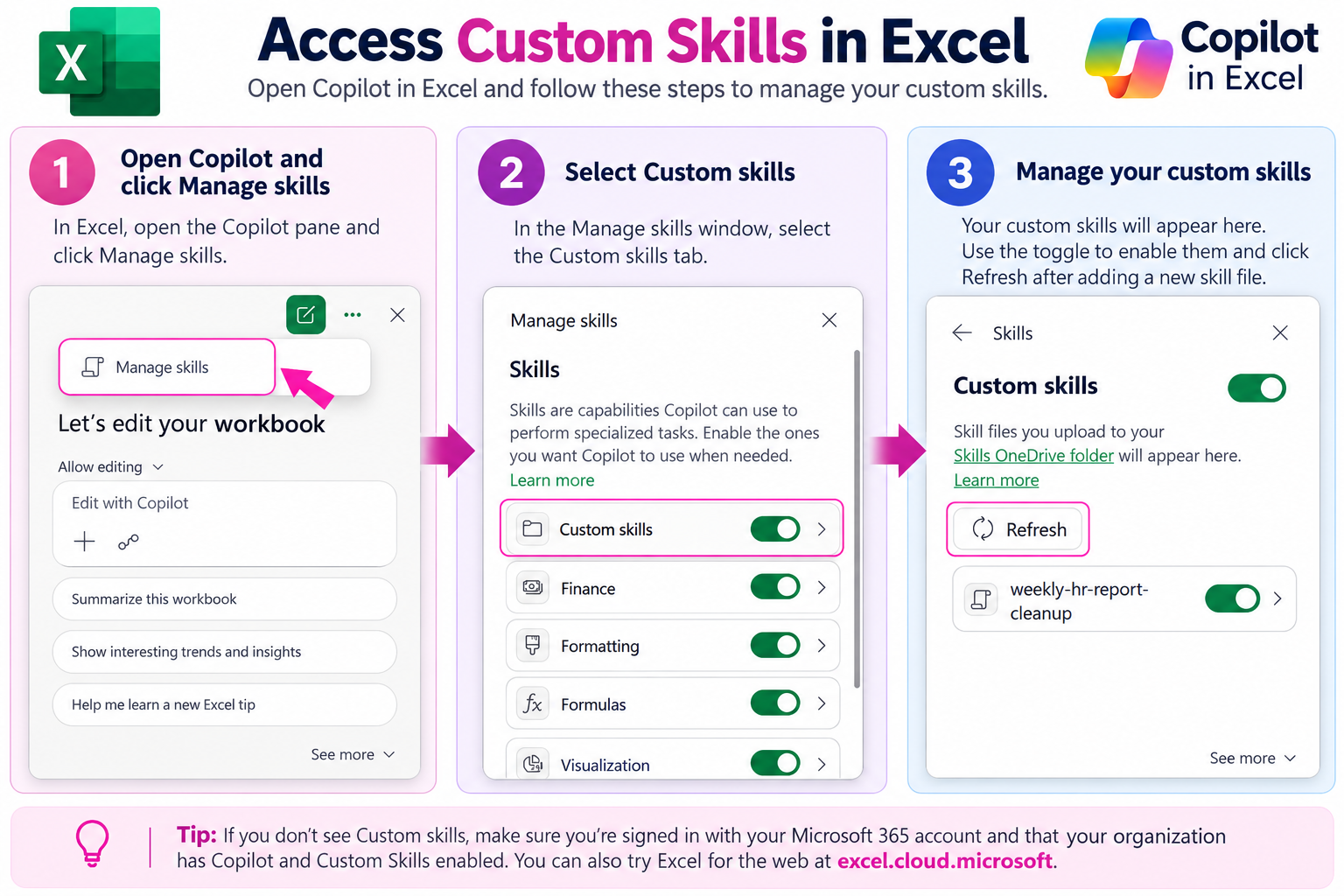
Step-by-step guide showing how to access and manage Custom Skills from the Copilot pane in Excel.
If you don’t see the Custom Skills option in your desktop version of Excel, use Excel for the Web as described in the Before You Start section above.
If this is your first custom Skill, follow the option to create the designated Skills folder in OneDrive.
Inside the Skills location, create a separate folder for your new Skill.
For my example, I named the folder:
weekly-hr-report-cleanup
Inside that folder, create a Markdown file named:
SKILL.md
MD stands for Markdown Document, a simple plain-text formatting language.
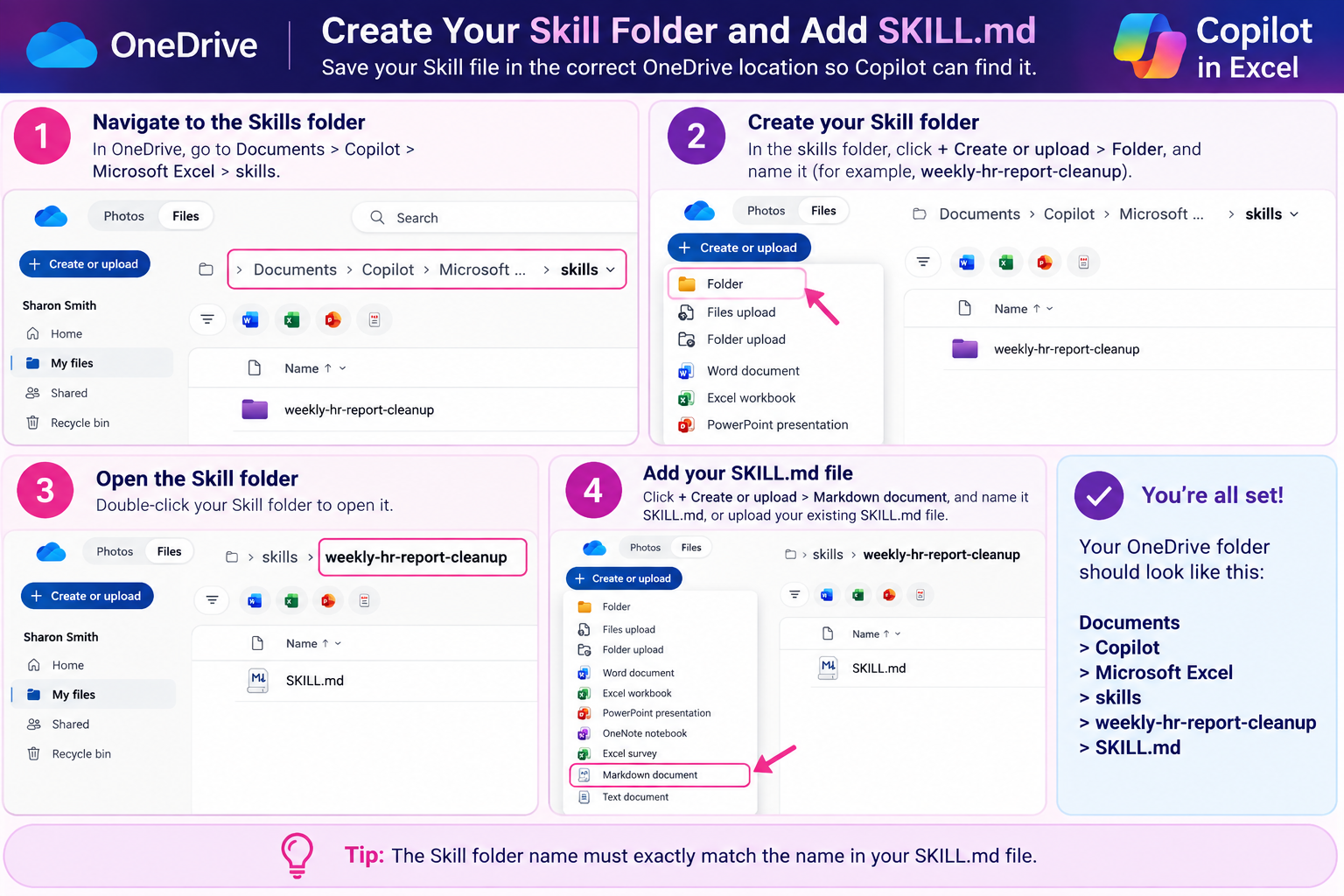
Step-by-step guide showing how to create a custom Copilot Skill folder in OneDrive and add the required SKILL.md file for use with Copilot in Excel.
Step 3: Add the Required Skill Information and Write Your Reusable Instructions
At the beginning of your SKILL.md file, add the information Copilot needs to identify your Skill.
Your file should begin with three dashes (---), followed by the Skill name and description, and then another line containing three dashes (---).
Important: The Skill name in your SKILL.md file should EXACTLY match the name of the folder you created for the Skill.
For example, my Skill folder is named:
weekly-hr-report-cleanup
So the name in my SKILL.md file exactly matches the folder name
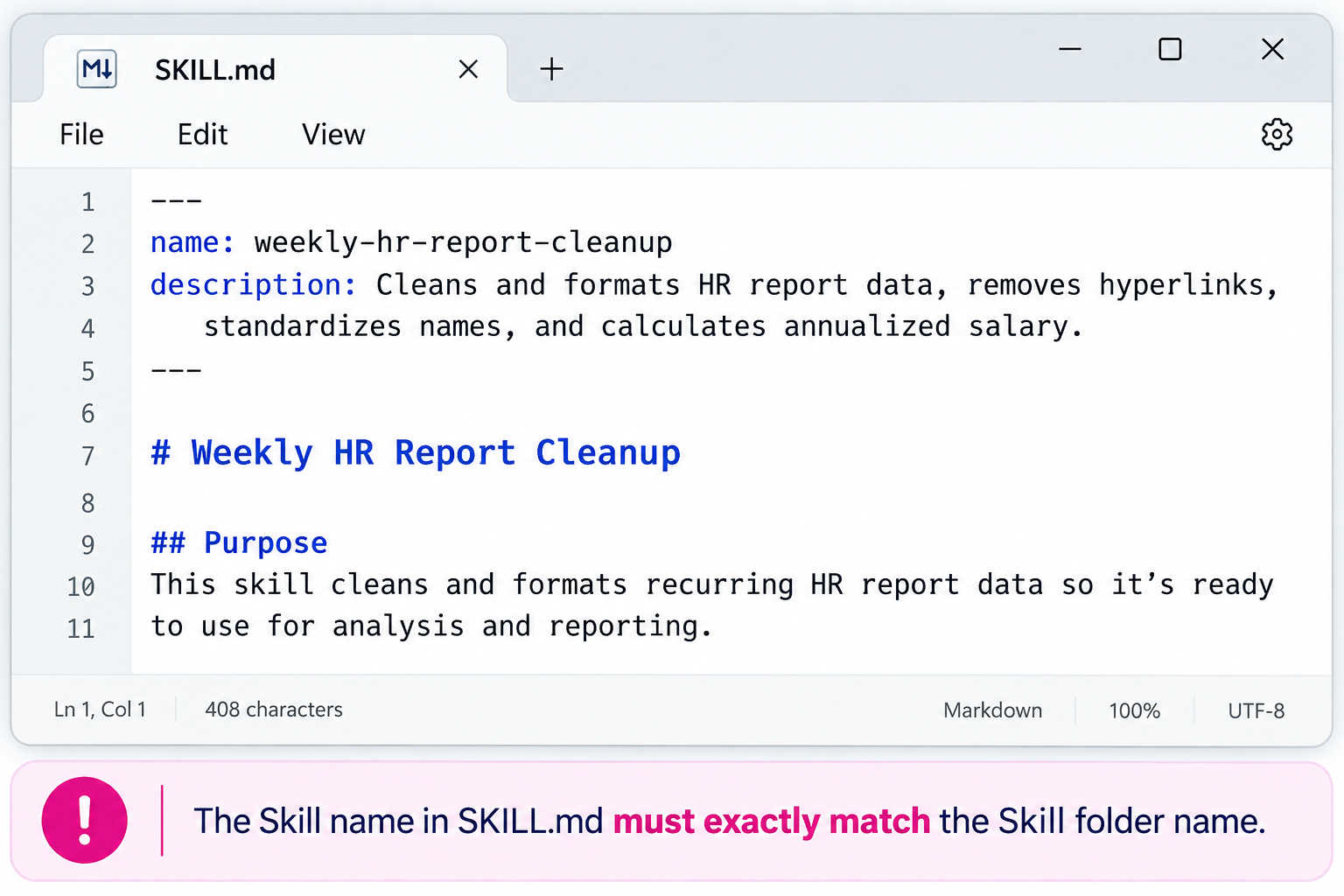
Example of a SKILL.md file for a custom Copilot Skill in Excel, showing the required name and description followed by reusable Skill instructions.
Below that, you can begin defining the instructions Copilot should follow. My complete SKILL.md file example is pasted below:
---
name: weekly-hr-report-cleanup
description: Use when I ask Copilot to clean up and format a weekly HR demographic report in Excel.
---

# Weekly HR Report Cleanup

When I ask you to clean up a weekly HR demographic report, complete the following steps:

### Sort and formatting safeguards

- Perform the department sort before applying header formatting.
- Sort the full dataset with row 1 explicitly treated as a header (`hasHeaders = true`).
- Never include the header as a sortable data row or manually rebuild rows after sorting.
- Apply the light-blue header formatting only after the sort is complete.
- Ensure all body rows use consistent body formatting; remove any header fill or bold font from rows 2 through the final data row.
- Verify after sorting that:
  1. Row 1 contains the expected headers.
  2. The employee count is unchanged.
  3. Departments are alphabetically sorted.
  4. No body row has header formatting.

1. Bold the header row and apply a light blue fill.

2. Rename the headers, preserving their existing column order:
   - Employee ID
   - Employee Name
   - Department
   - Job Title
   - Ethnicity
   - Hire Date
   - FTE
   - Hourly Rate
   - Location
   - Work Type
   - Manager

3. Remove all hyperlink objects from every cell in the Employee ID column using the explicit “Remove Hyperlinks” operation, while preserving displayed values and formatting. Rewriting cell values alone is insufficient. Verify that zero Employee ID cells retain a hyperlink.

4. Remove leading, trailing, and unnecessary extra spaces from the Employee Name column.

5. Standardize Employee Name capitalization to Proper Case.

6. Standardize Employee Name format to First Name followed by Last Name. If a name is stored as Last Name, First Name, convert it to First Name Last Name.

7. Add a new column named Annualized Salary.

8. Calculate Annualized Salary for each employee as:
   Hourly Rate × 2,080 × FTE

9. Format Hourly Rate and Annualized Salary as USD currency.

10. Sort the entire dataset alphabetically by Department, keeping each employee's complete record together.

11. Autofit all columns so the contents are fully visible.

12. Do not delete employee records or alter underlying employee information except for the specific cleanup and formatting changes described above.
This is where you're essentially teaching Copilot how you want the recurring task handled. Your instructions can be as detailed as needed for your particular workflow.
In my example, I've included both the tasks I want Copilot to perform, such as cleaning employee names, removing hyperlinks, calculating Annualized Salary, sorting the report, and applying formatting, and several safeguards and verification steps.
For example, I instruct Copilot to preserve the employee count, keep each employee's complete record together when sorting, prevent the header from becoming part of the sortable data, and verify the results after the sort is complete.
I also added a guardrail instructing Copilot not to delete employee records or alter underlying employee information beyond the specific cleanup requested.
💡 Tip: Don't just tell Copilot what you want it to do. For important steps, consider specifying what it should preserve, what it should avoid changing, and how it should verify that the task was completed correctly.
Step 5: Add the Skill to Copilot in Excel
Once you've saved your SKILL.md file, return to Excel.
Go back to:
Manage Skills > Custom Skills
Select Refresh, and your new Skill should appear.
Enable the Skill so it's available to Copilot.
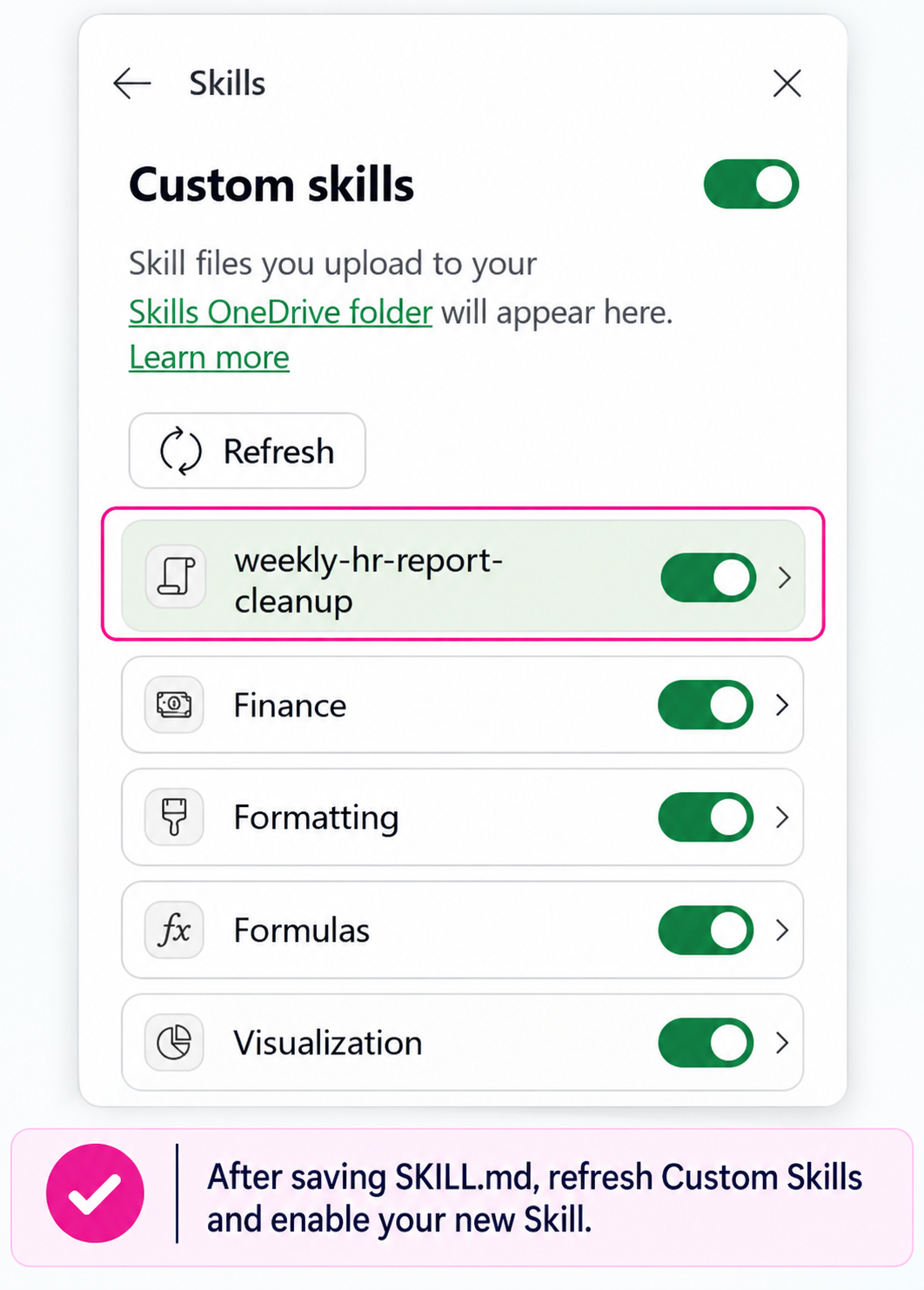
Custom Skills screen in Copilot for Excel showing the weekly HR report cleanup Skill successfully loaded and enabled after refreshing the Skills list.
Step 6: Invoke Your Copilot Skill
Now comes the fun part.
Instead of typing all of your report-cleanup instructions again, you can reference the Skill directly in the Copilot chat prompt.
For my report, I typed:
@weekly-hr-report-cleanup Clean up this weekly HR demographic report.
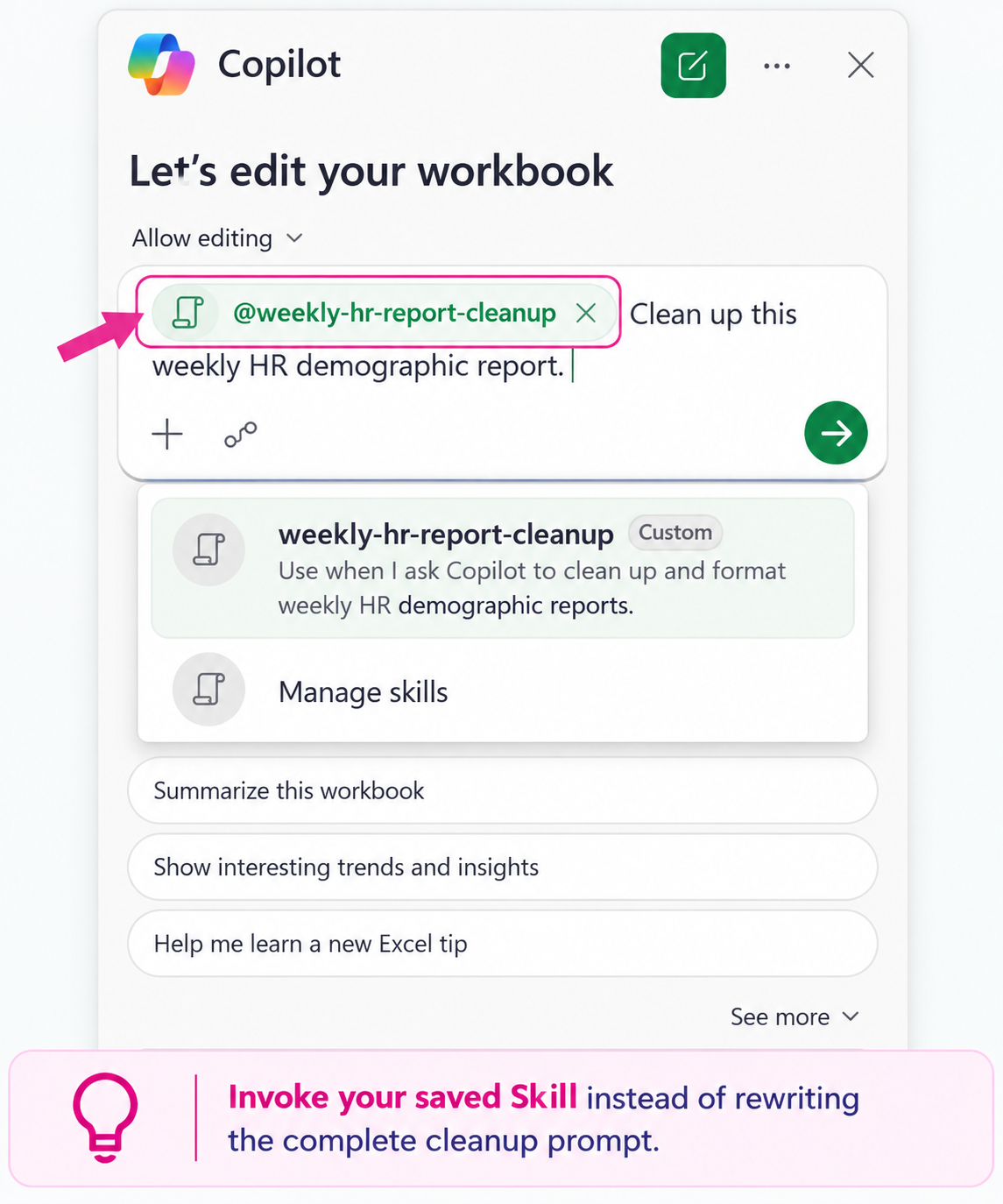
Example showing how to invoke a saved Custom Skill in Copilot for Excel using an @mention instead of retyping the complete report cleanup instructions.
Copilot can then use the instructions stored in the Skill to perform the requested cleanup.
The real benefit comes when next week's report arrives.
Open the new report, invoke the same Skill, and Copilot can use your saved instructions again rather than requiring you to recreate the entire prompt.
Step 7: Test and Refine Your Copilot Skill
This is one step I wouldn't skip.
My Skill didn't work perfectly the first time.
Originally, I instructed Copilot to:
Remove hyperlinks from the Employee ID column while preserving the Employee ID values.
It sounded clear, but during testing I discovered Copilot wasn't actually removing all of the underlying hyperlink objects.
So I refined the instruction to be much more specific about the operation Copilot should perform, what it needed to preserve, what would not count as completing the task, and how to verify the result.
I saved the SKILL.md file, refreshed the Skill, and tested it again.
Next time, it worked.
That's a useful process to follow when creating your own Skills:
Set it up → Test it → Refine it → Test it again
AI automation still requires review, particularly when you're working with HR, payroll, financial, or other important business data.
The goal isn't to stop checking your work. It's to stop manually repeating all of the work.
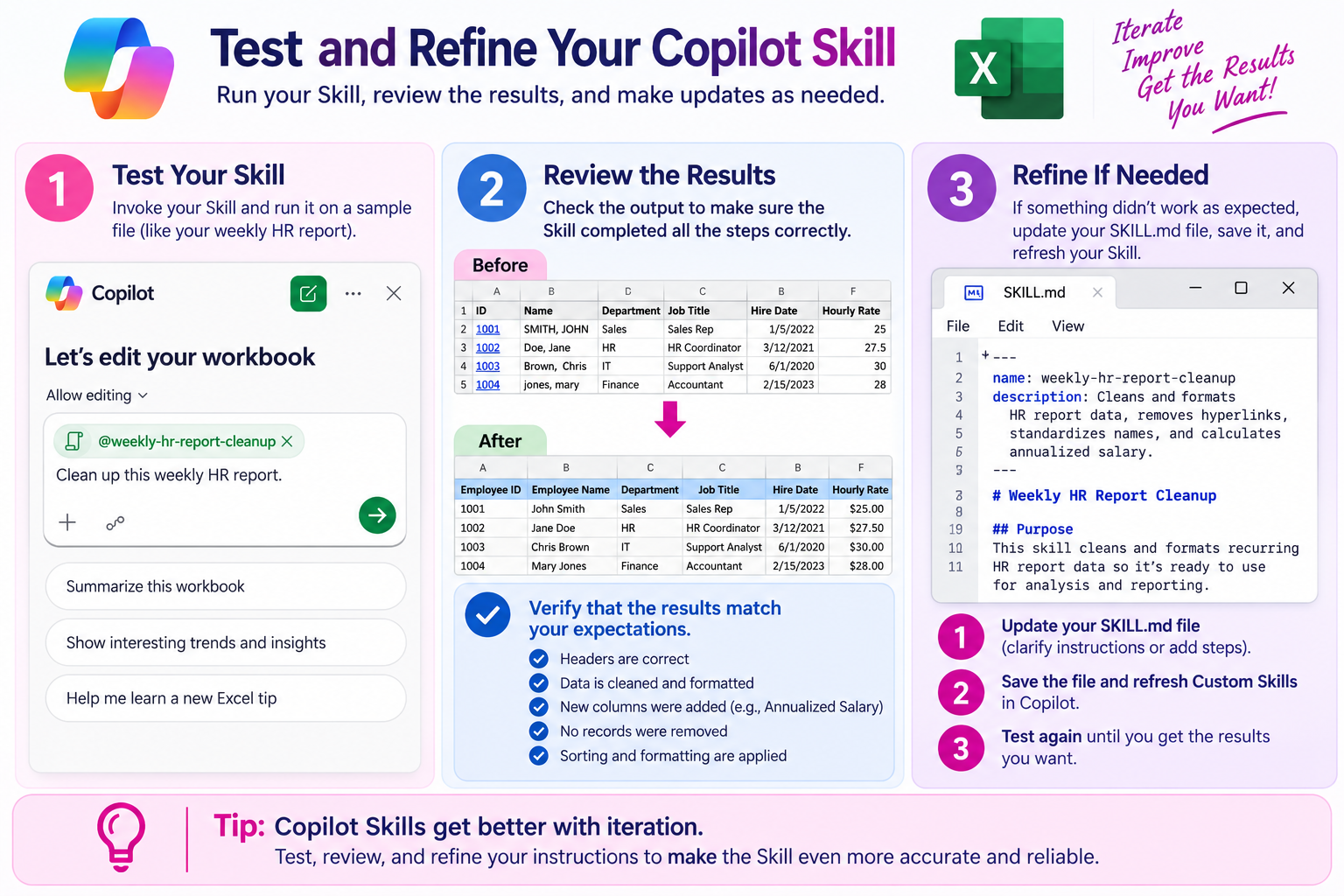
Test and refine a Custom Copilot Skill in Excel by running the Skill on a sample report, reviewing the results, updating the SKILL.md instructions when needed, and testing again.
What Other Excel Tasks Could You Automate?
My example uses an HR report, but the same concept can apply to many recurring Excel workflows.
You might create a Copilot Skill for a weekly sales export, monthly accounting report, payroll file, inventory report, recurring financial analysis, or another spreadsheet that requires similar work every time you receive it.
A good question to ask yourself is:
“What instructions do I keep giving Copilot over and over again?”
If you're repeatedly explaining the same process, it may be a good candidate for a reusable Skill.
Copilot Skills vs. Office Scripts in Excel
Copilot Skills aren't the only way to automate repetitive Excel work.
You can also use Office Scripts to create a repeatable script that executes a defined set of Excel actions.
The distinction is useful:
Copilot Skill: You create reusable instructions that AI interprets when you invoke the Skill.
Office Script: You create a reusable script that executes defined Excel actions.
For this type of recurring report cleanup, either approach may work well. Both require some initial setup, testing, and potentially some refinement.
I'll also be sharing a tutorial showing how to automate repetitive Excel tasks using Office Scripts and Excel's Action Recorder, so you can see the two approaches in action.
[CHECK BACK HERE WHEN OFFICE SCRIPTS TUTORIAL IS PUBLISHED NEXT WEEK]
Watch the Complete Copilot Skills in Excel Tutorial
If you'd like to see every step on screen—including creating the SKILL.md file, enabling the Skill, running it against my first HR report, troubleshooting the hyperlink problem, and then testing it against a brand-new report—watch the complete tutorial:
🎥 Stop Formatting Excel Reports By Hand! Automate Excel Reports with Copilot Skills