
If you need sequential numbering in Excel that restarts when a value changes, there’s a simple formula trick that can automate the process, so each time an item recurs on your spreadsheet, it’s number will increase by 1, and the numbering will reset to 1 for a new item.
This is especially useful when working with grouped data, such as:
employee skills for each employee
invoice line items
order details
transaction records
database uploads
Instead of manually resetting numbers every time a new record appears, you can use an IF formula in Excel that automatically restarts numbering for each group.
In this tutorial, you'll learn how to restart numbering in Excel automatically when a value changes.
Example Scenario
In this example, we have a spreadsheet with two columns:
Employee ID
Skill
Each employee can have multiple skills, and we need to assign a sequential skill number for each employee.
For example:
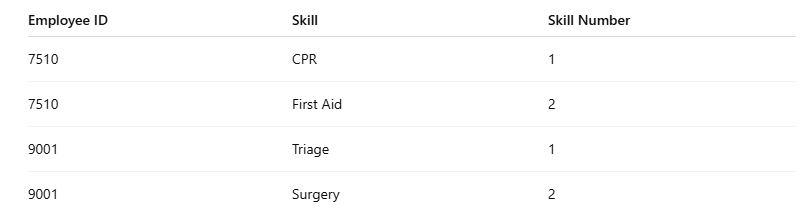
Notice how the numbering restarts at 1 for each new employee.
Let’s walk through how to create this automatically.
Step 1: Sort Your Data by the Grouping Column
First, make sure your data is sorted by the column that defines the group.
In this example, that column is Employee ID.
To sort the data:
Select your data.
Go to the Data tab.
Click Sort.
Choose Employee ID.
Click OK.
Sorting ensures that each employee’s records stay grouped together, which allows the formula to work correctly.
Step 2: Start the First Number
In the first row of the numbering column, type: 1
This starts the sequence for the first group.
Step 3: Enter the IF Formula
In the next row, enter this formula (note cell references may be different in your spreadsheet):
=IF(A3=A2,B2+1,1)
How the formula works
The formula checks whether the Employee ID matches the one above it.
If the value matches the previous row, Excel increases the number by 1.
If the value changes, Excel resets the number back to 1.
This creates an automatic numbering sequence that restarts for each new group.
Step 4: Copy the Formula Down
Next, apply the formula to the rest of the column.
Select the cell with the formula.
Move your cursor to the bottom-right corner of the cell.
When the fill handle appears, double-click it.
Excel will copy the formula down the column and automatically generate the sequential numbers.
Step 5: Convert the Formulas to Values (Optional)
If you're preparing the spreadsheet for a database upload, it's usually best to convert formulas to values.
To do this:
Select the numbering column.
Press Ctrl + C to copy.
Press Ctrl + Shift + V to paste values.
Now the column contains numbers instead of formulas, which prevents errors when importing data into other systems.
When This Excel Trick Is Most Useful
Restarting numbering in Excel is commonly used when preparing data for:
HRIS system uploads
CRM imports
finance system data loads
database uploads
inventory records
It’s a quick way to clean and structure grouped data before importing it into another system.
Related Excel Tutorials
If you're preparing spreadsheets for system uploads, you may also find these tutorials helpful:
How to Find Duplicate Records in Excel (Link coming soon)
Excel Data Cleanup Checklist Before Importing Data (Link coming soon)
Final Thoughts
Using a simple IF formula, you can automatically restart sequential numbering in Excel whenever a value changes.
This technique saves time, reduces manual work, and helps ensure your data is organized correctly before uploading it into other systems.